
Scheduling a receipt helps you to make necessary arrangements for receiving some assets at your organization from your contacts or even from your organization's another location.
To schedule a receipt , click on Schedule Shipment in the side menu under Receipt tab. The navigation path is Receipt -> Schedule Receipt
Clicking on Schedule Receipt will take you to a screen where you can select the assets you intent to receive by clicking the check box near to the asset tag.
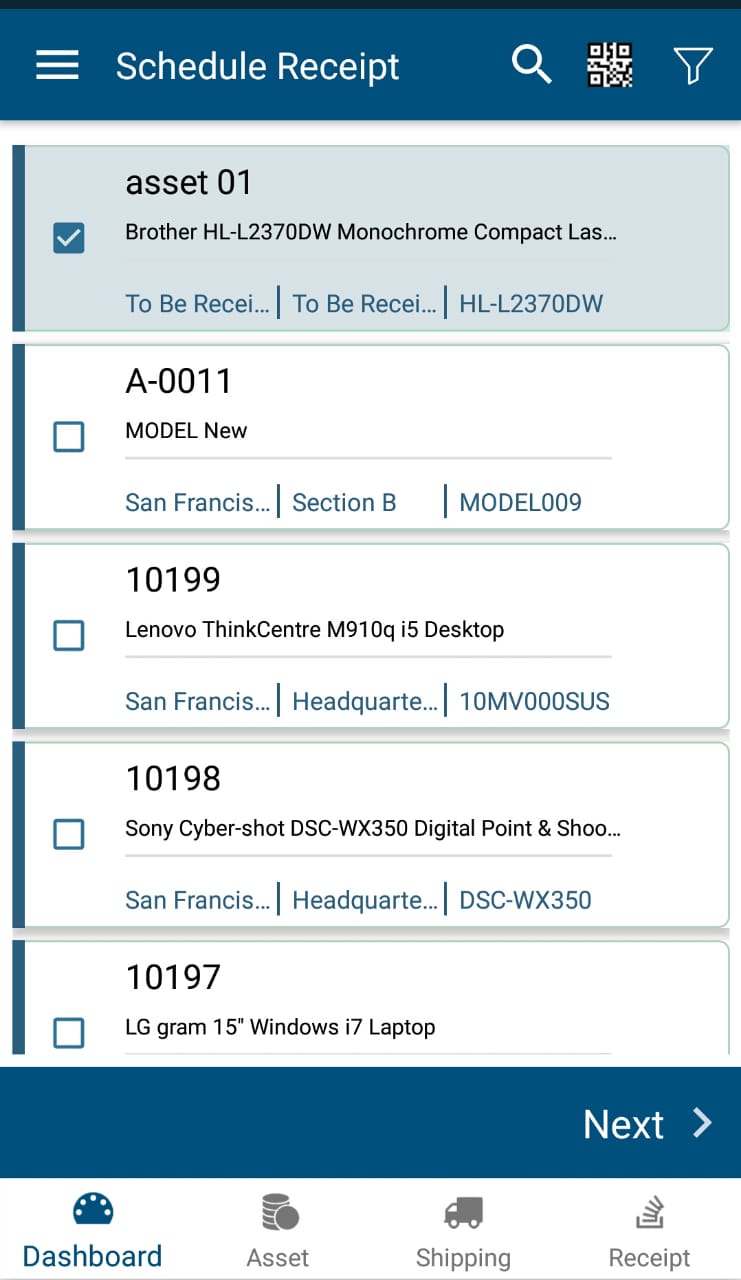
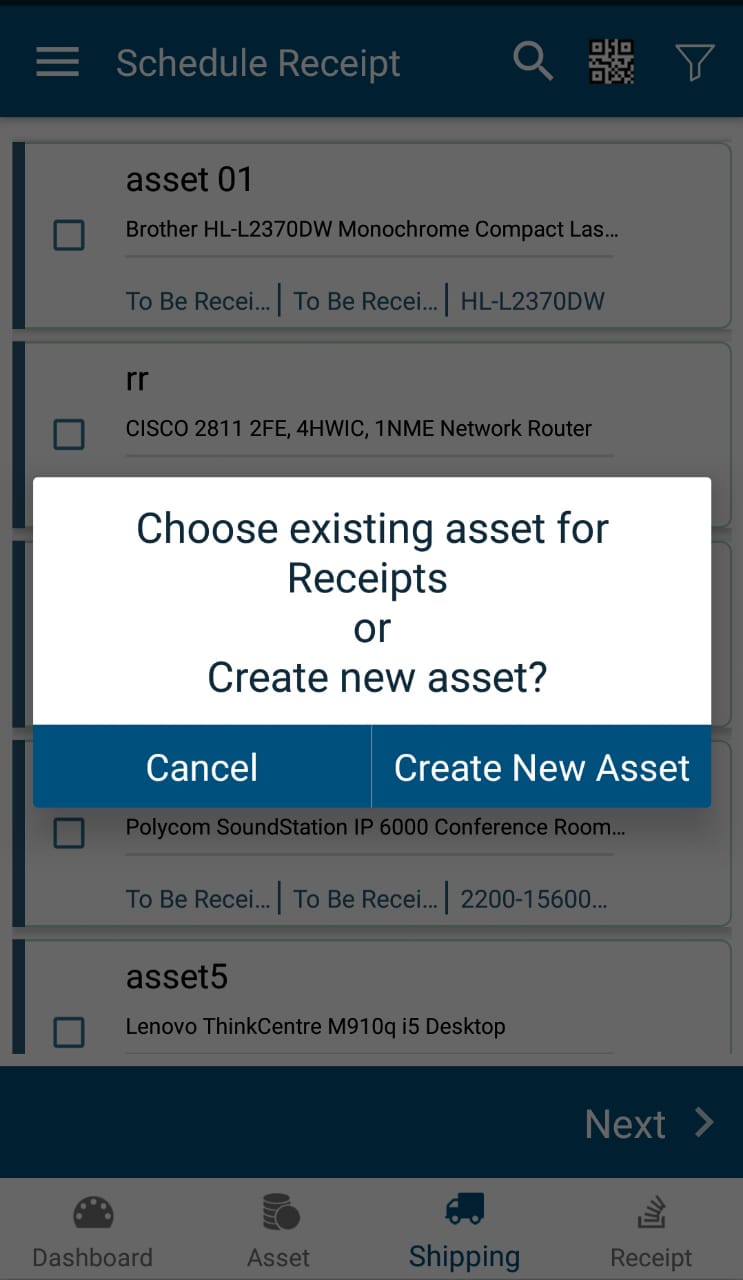
Or if you wish to receive a new asset then directly click on ' Next ' to open the popup to add a new asset.
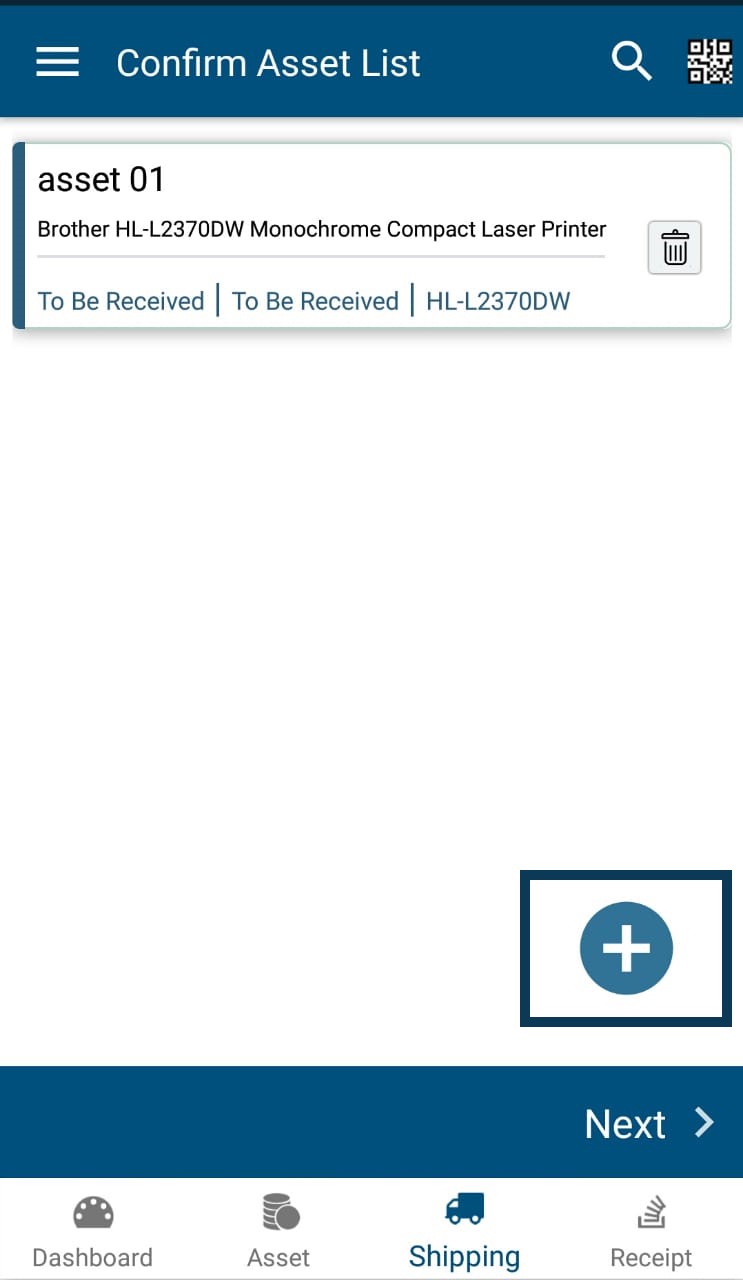
You can add new assets to the receiving queue by clicking on the ' Plus ' icon at the bottom right of the
' Confirm Asset List ' screen.
A new asset can be added by selecting it's model number and entering it's asset tag.

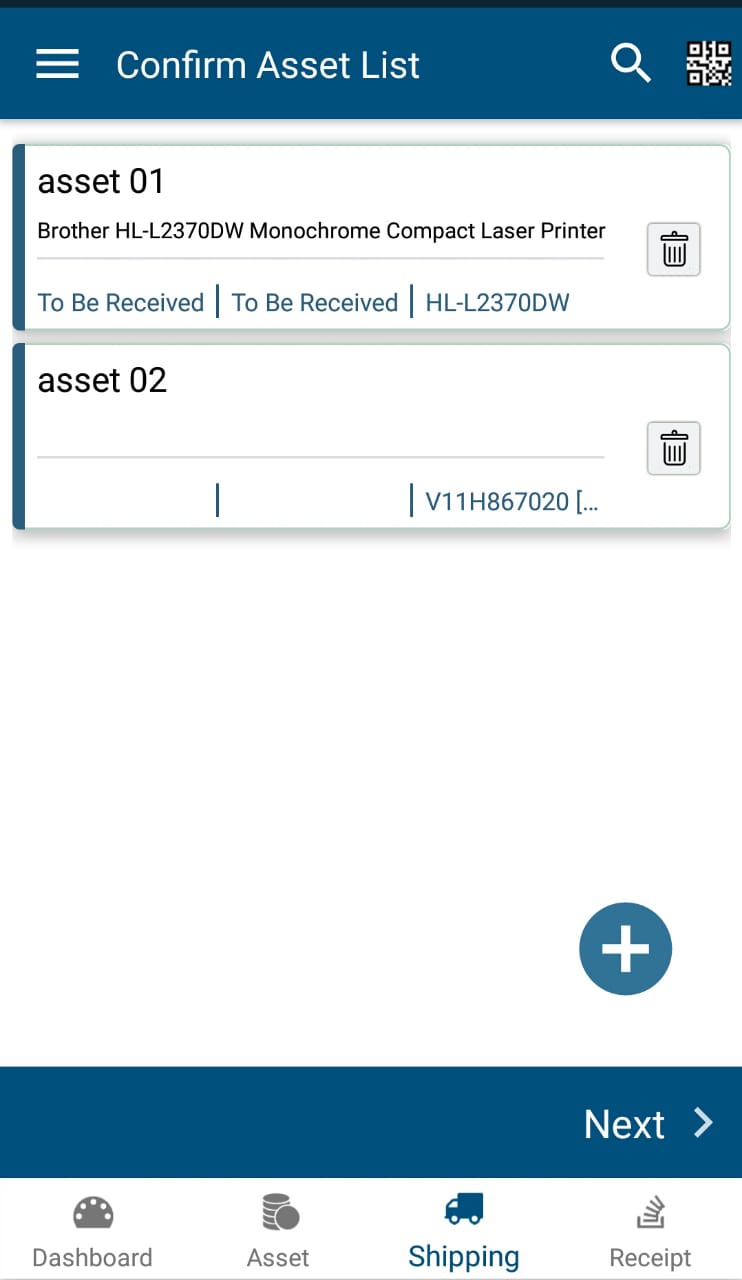
After selecting all assets to receive, click on 'Next' on the bottom right of the screen. This will take you to a screen where the other details are to be entered.
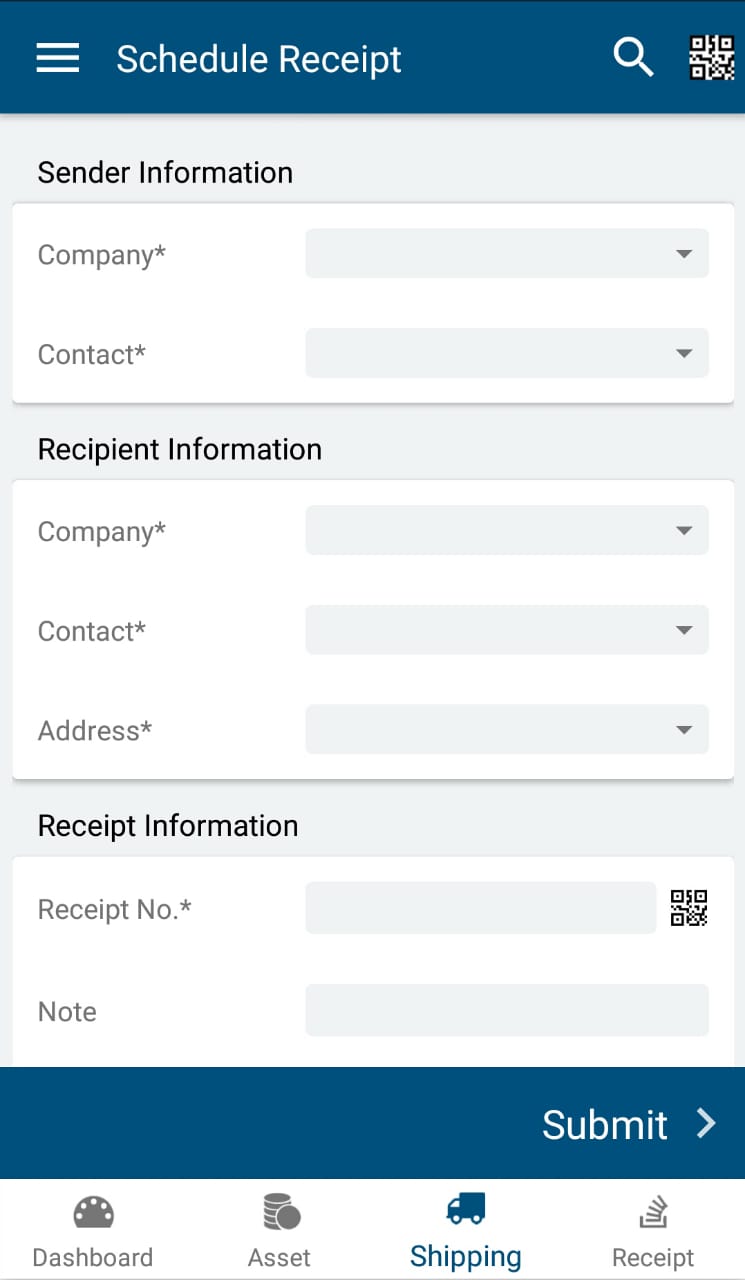
- Sender Information - Company and contact are required fields. These can be set up as a default set of information to save time, by configuring General Settings in the web application.
- Recipient Information - Company, Contact, and Address are required fields. These can be set up as a default set of information to save time, by configuring General Settings in the web application.
- Receipt No* - If an admin set the Receipt Number option to Custom Receipt Number, a required field for Receipt Number will also show in this section. Otherwise, Tracmor assigns a sequential number.
- Adding a Note is optional.
- Due Date is required and is selected from a popup calendar.
- If you click on yes for Email Notification, add one or more email address(es).
- The Other Information section only appears if you have added custom fields are defined in the receipt section. If they are marked as mandatory fields, an asterisk will be attached to the field name. For more information, see What do I need to know about custom fields?
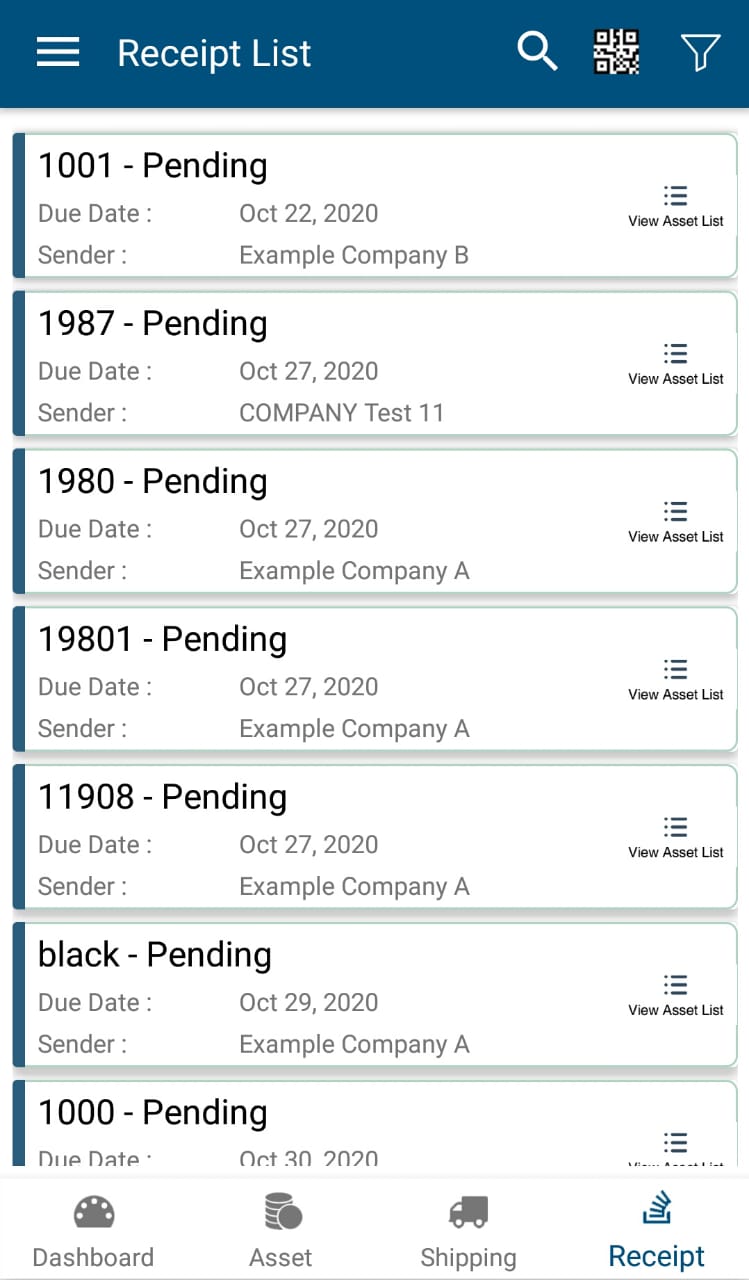
Click on Submit and you will see the message " Receipt is added successfully " and new receipt will be available in the Receipt List.
0 Comments